
Embora a IA da MultiLipi cuide do trabalho pesado, manter uma voz de marca consistente requer um toque humano. Quer precise de corrigir um termo técnico ou ajustar o tom para um mercado específico, a MultiLipi oferece duas interfaces poderosas para gerir o seu conteúdo: o Editor Manual (para atualizações em massa) e as Editor Visual (para contexto na página).
Ambos os métodos permitem editar, refinar e publicar alterações instantaneamente no seu site ativo.
Porque a Edição Manual Importa
O refinamento das traduções de IA ajuda a manter a consistência da marca, a corrigir terminologia técnica, a otimizar palavras-chave de SEO local e a garantir a relevância cultural entre os mercados.
Método 1: O Editor Manual (Gestão em Massa)
Melhor para: Revisão rápida de listas de texto, correção de terminologia e otimização de palavras-chave de SEO.
O Editor Manual oferece uma vista simplificada, lado a lado, do seu texto original e traduzido, facilitando a auditoria eficiente do conteúdo.
Passo 1: Aceder ao Painel do Projeto
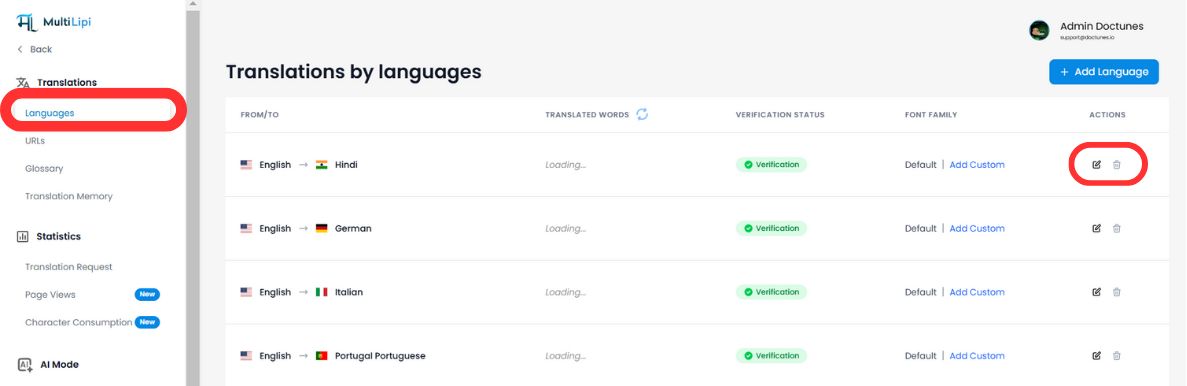
Inicie sessão no seu painel MultiLipi e clique em Projetos na barra lateral. Selecione o domínio específico que deseja gerir.
Passo 2: Selecionar Idioma de Destino
Escolha o idioma que deseja editar (por exemplo, "Francês"). O sistema carregará uma lista completa de todas as cadeias de texto encontradas no seu site, juntamente com as suas traduções atuais.
Passo 3: Editar Conteúdo
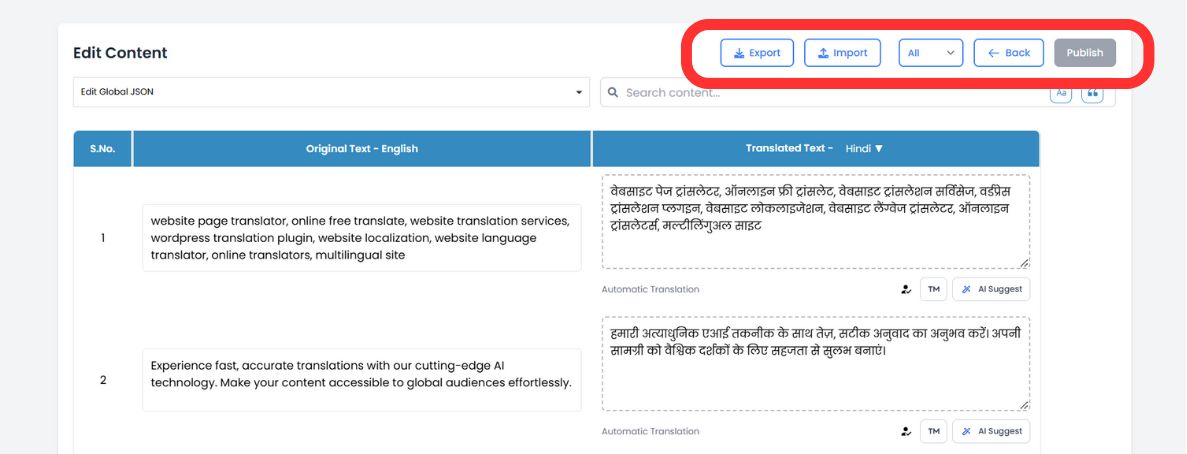
Clique dentro de qualquer caixa de tradução para modificar o texto. Pode usar a barra de pesquisa superior para encontrar instantaneamente frases específicas, nomes de produtos ou títulos que necessitem de atenção.
Passo 4: Utilize Sugestões de IA (Novo)
À medida que edita, o nosso motor de IA analisa agora o seu texto em tempo real. Veja abaixo de cada campo para Sugestões Inteligentes adaptado para melhorar a legibilidade e o desempenho de SEO.
Substituição com Um Clique
Se a IA sugerir uma formulação melhor (ou corresponder a um termo do seu Glossário), basta clicar na sugestão para a trocar instantaneamente no campo do editor.
Passo 5: Publicar
Quando estiver satisfeito, clique no Publicar botão no canto superior direito. As suas atualizações são enviadas para a rede global imediatamente.
Método 2: O Editor Visual (Revisão In-Context)
Melhor para: Ajustes de UI/UX, cópias de marketing e correção de quebras de layout.
O contexto é tudo. O Editor Visual permite navegar pelo seu website real e editar traduções diretamente no ecrã, garantindo que o seu texto se encaixa perfeitamente no seu design.
Passo 1: Inicie a Interface
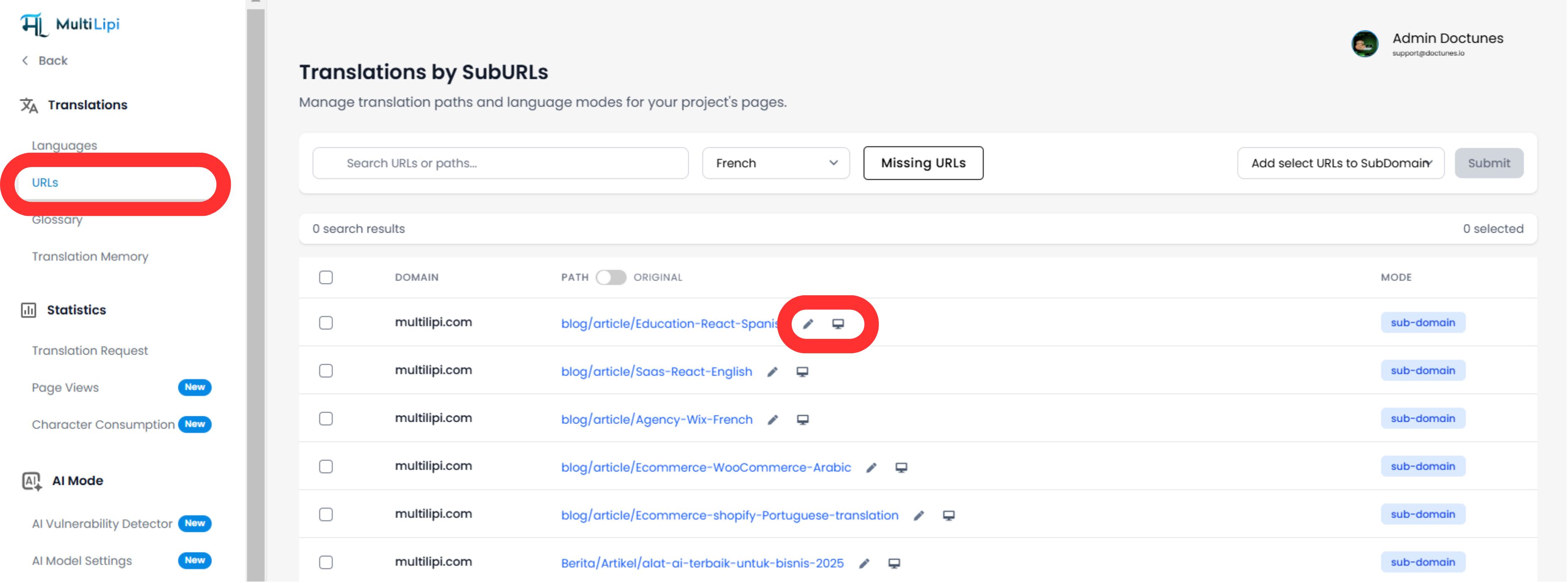
Navegue até Traduções > URLs na barra lateral do painel. Verá uma lista de todas as páginas indexadas.
Passo 2: Abrir Vista em Direto
Clique no ícone do Editor Visual (🖥️) ao lado da página que pretende editar. Isto abre uma pré-visualização interativa e em tempo real do seu site no idioma selecionado.
Passo 3: Edição por clique
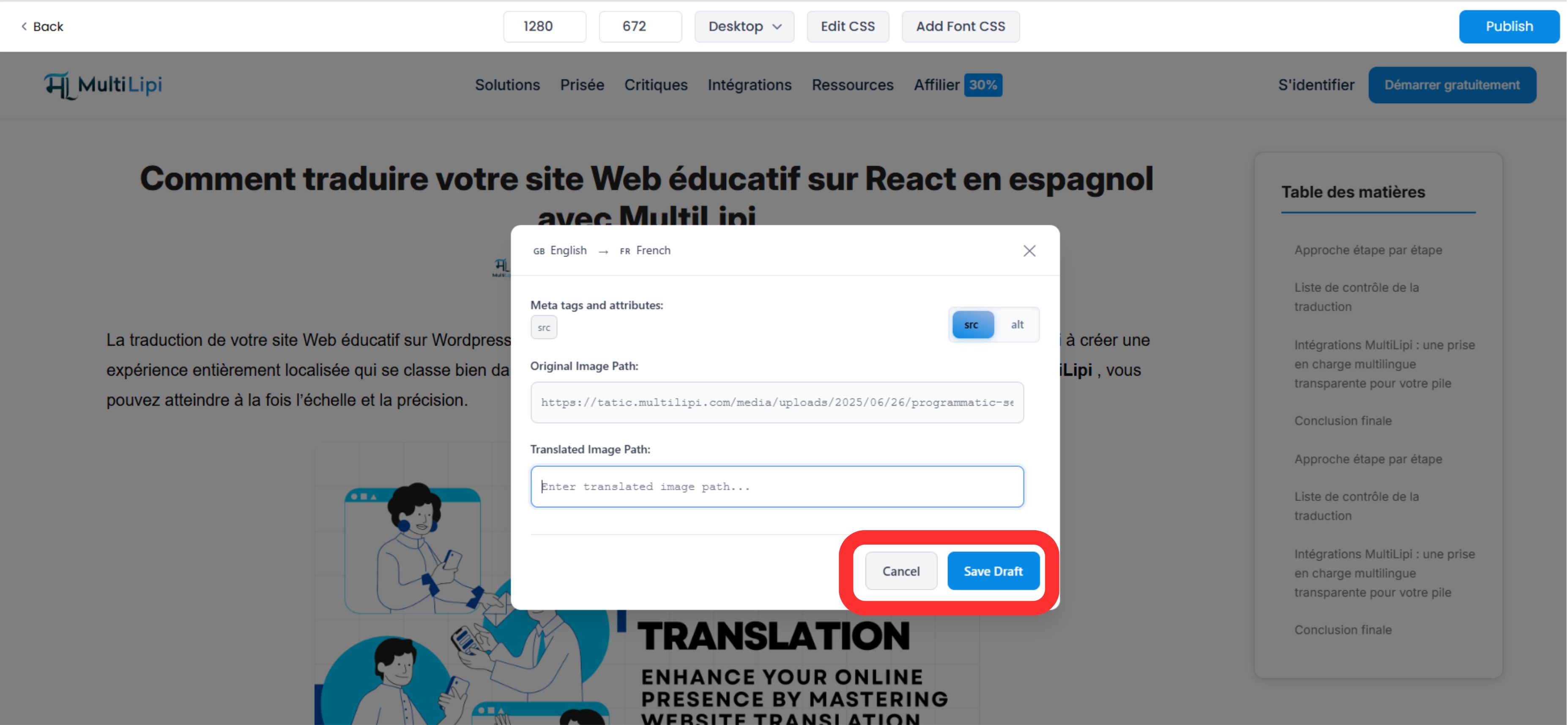
Simplesmente clique em qualquer elemento de texto — títulos, botões ou parágrafos — para abrir o editor em linha.
Verificação de Layout em Tempo Real
Veja imediatamente se uma tradução é demasiado longa e afeta o seu design.
SEO de Imagem
Clique nas imagens para traduzir as Tags Alt diretamente, aumentando a sua visibilidade no Google Imagens para essa região.
Passo 4: Aplicar Melhorias de IA
O Editor Visual inclui agora ferramentas de contexto avançadas:
- •Controlos de Tom: Ajuste a formalidade (por exemplo, Profissional vs. Amigável) e deixe a IA reescrever a cópia para corresponder.
- •Deteção de Desalinhamento: O sistema assinala automaticamente texto que possa parecer quebrado ou desalinhado.
Passo 5: Publicar
Clique Publicar para publicar as suas alterações. Pode mudar de idioma através do menu suspenso superior para repetir o processo para outras regiões sem sair da página.
Porque Isto Importa para o Crescimento
A edição não se trata apenas de corrigir erros; é uma estratégia de conversão.
Sinais de Confiança
Um erro gramatical num botão de checkout pode arruinar uma venda. Uma rápida revisão manual garante que as suas "Páginas de Dinheiro" (Preços, Checkout) pareçam nativas e confiáveis.
Autoridade SEO
Utilizar o Editor Manual para inserir palavras-chave locais de alto volume (por exemplo, mudar "Cell Phone" para "Handy" para a Alemanha) pode melhorar significativamente os seus rankings de pesquisa locais.
💡 Dica Pro: Combine ambos os editores no seu fluxo de trabalho. Utilize o Editor Manual para correções de terminologia em massa e otimização de SEO, depois mude para o Editor Visual para verificar se as alterações ficam perfeitas no seu layout de design real.