

Implementar o MultiLipi no Shopify
Transforme a sua montra numa plataforma de vendas global.
O Shopify foi concebido para o comércio, mas a verdadeira escala global requer mais do que apenas a conversão de moeda. Ao integrar o MultiLipi, implementa uma Infraestrutura de Tradução Neural que localiza toda a sua loja – desde descrições de produtos a fluxos de checkout – ao mesmo tempo que lida automaticamente com os complexos sinais de SEO necessários para classificar os seus produtos em mercados estrangeiros.
Este guia detalha o processo de integração utilizando o theme.liquid arquitetura.
1. Pré-requisitos de Implementação
Antes de modificar o seu tema, certifique-se de que tem as seguintes credenciais:
Chave API MultiLipi
Localize isto no seu Painel de Controlo em Definições > Geral.
Acesso à Administração Shopify
Tem de ter permissões para editar temas.
2. Passo 1: Aceder à Arquitetura do Tema
Injetaremos o motor de tradução diretamente no ficheiro de layout global da sua loja para garantir que carrega em todas as páginas (Produtos, Coleções, Páginas).
- 1
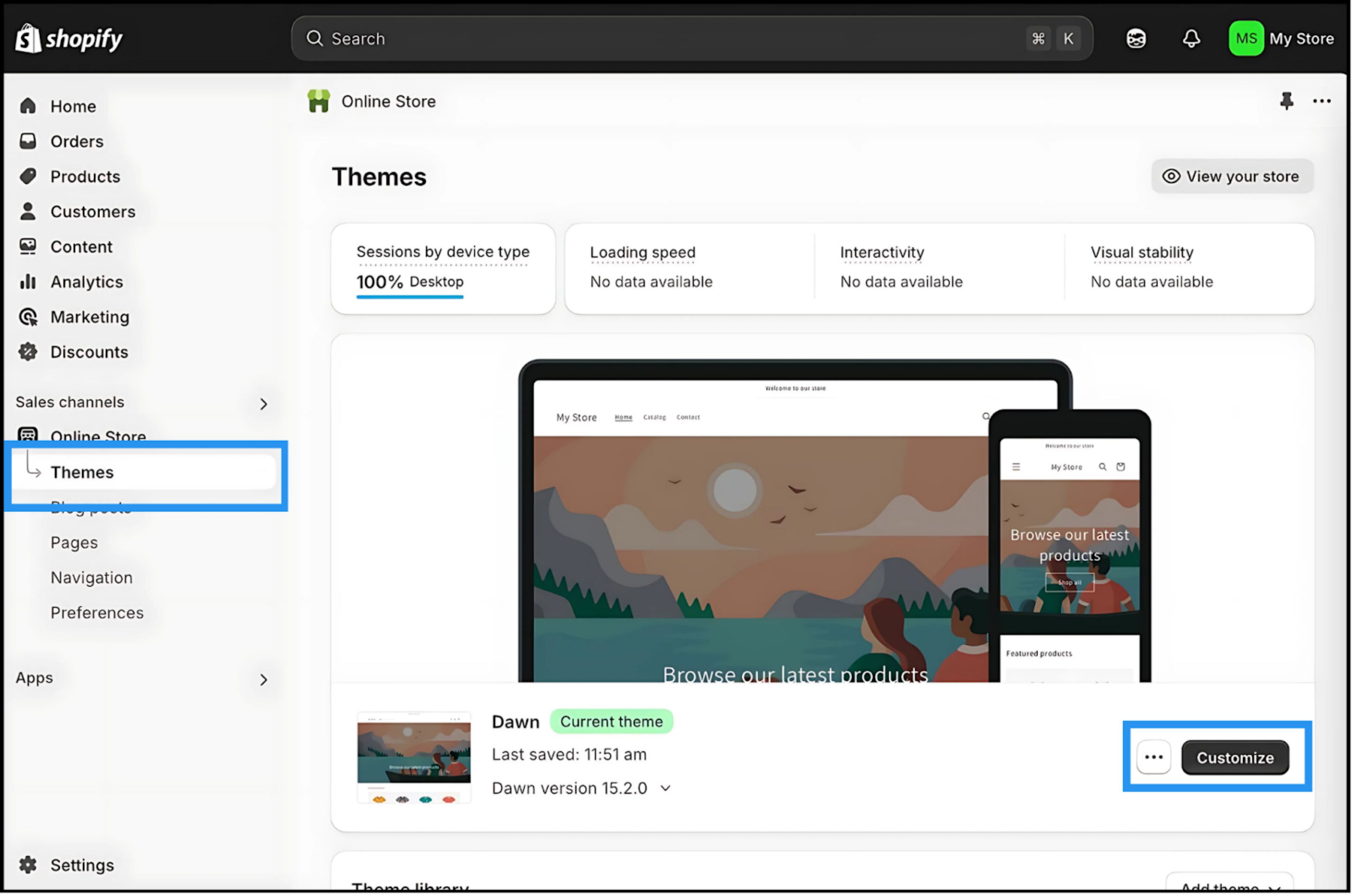
Inicie sessão na sua Painel de Administração Shopify.
- 2
Navegue até Loja Online > Temas.
- 3
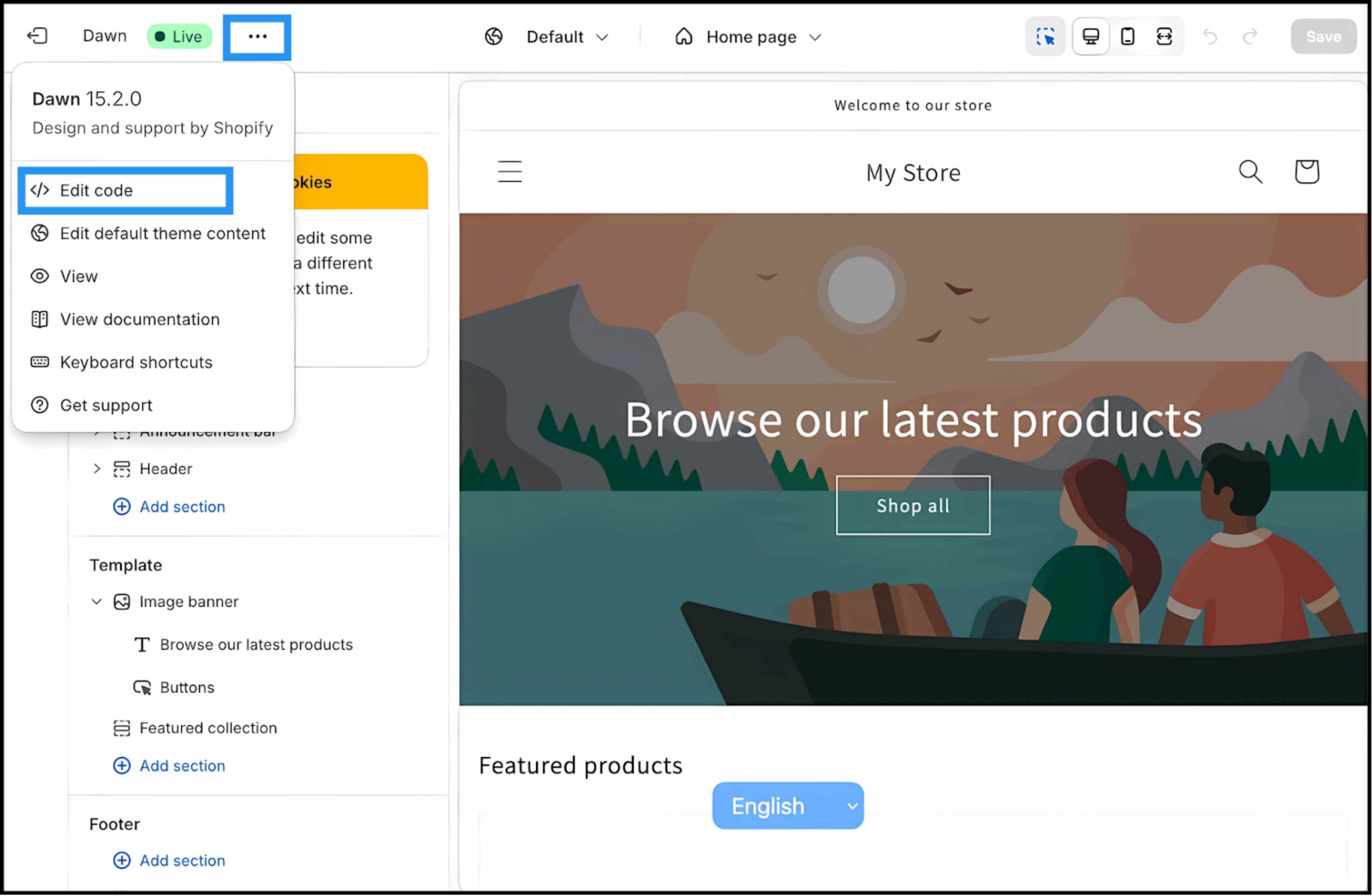
Localize o seu tema ativo ("Ao Vivo) e clique em Três Pontos (⋮) botão.
- 4
Selecionar Editar Código.
3. Passo 2: Injetar o Script de Infraestrutura
- 1
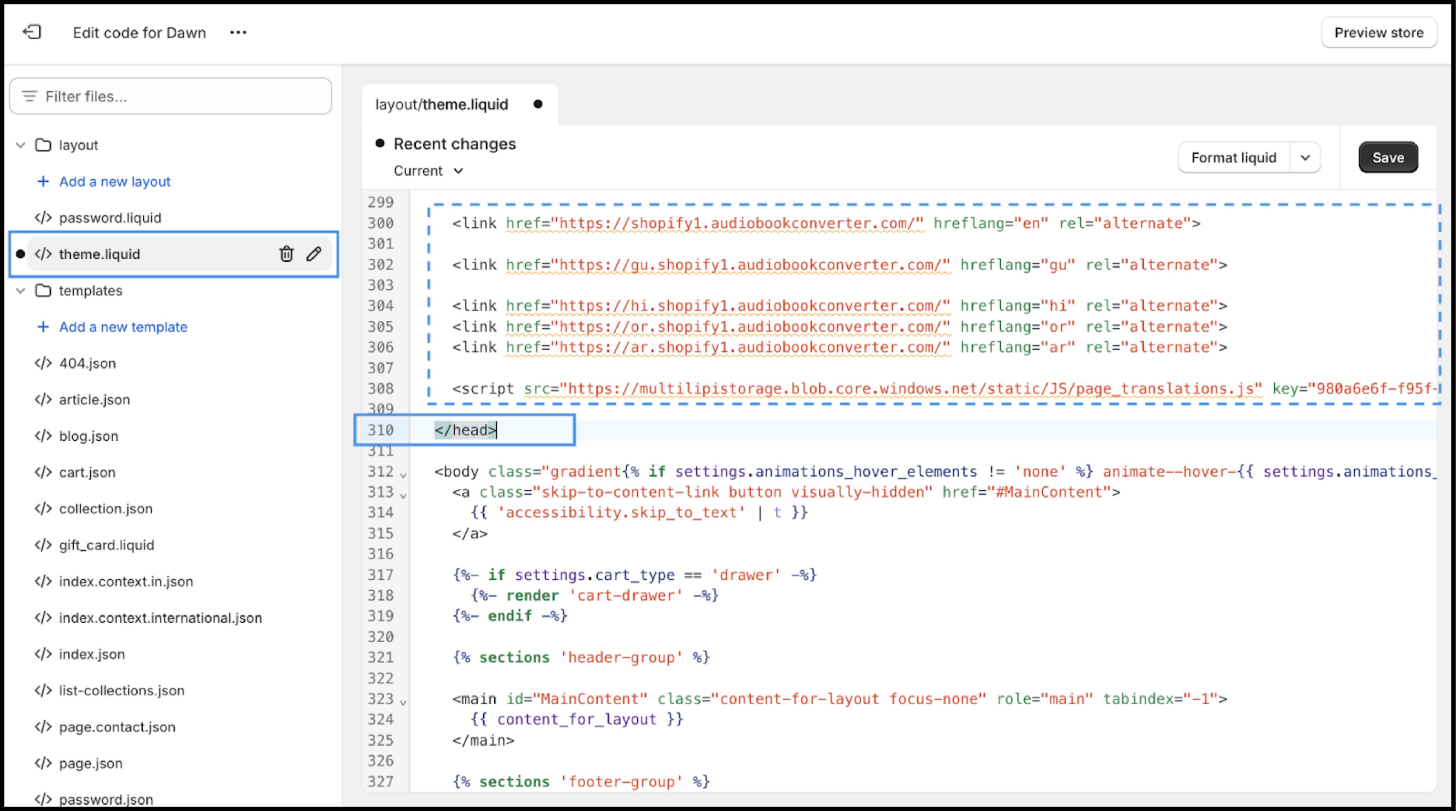
No diretório de ficheiros (barra lateral esquerda), localize o Layout pasta.
- 2
Abrir
theme.liquid. Este é o modelo principal da sua loja. - 3
Desloque-se para baixo para encontrar o fecho
etiqueta.
Ação: Cole o Script de Ligação
Cole o seguinte script de ligação imediatamente acima o tag:
⚠️ Configuração Crítica
- •Substituir
SUA_CHAVE_DE_API_AQUIcom a Chave de API real copiada do seu painel MultiLipi. - •Clique Guardar no canto superior direito.
4. Passo 3: Validação e Lançamento
Assim que guardada, a infraestrutura fica ativa.
Abrir Loja Virtual
Navegue para o URL do seu site ativo.
Verificar UI
Deverá ver o Seletor de Idioma ancorado no canto inferior esquerdo (posição padrão).
Teste de Tradução
Mude para um idioma de destino. Verifique se os títulos dos produtos, descrições e botões "Adicionar ao Carrinho" são traduzidos instantaneamente.
Protocolo de Resolução de Problemas
- •Não vê o seletor? Certifique-se de que o script está acima da tag de fecho
tag, não abaixo dela. - •Cache: Se utilizar uma aplicação de cache de terceiros, limpe a cache.
- •Incógnito: Teste numa janela Incógnita/Privada para contornar o cache local do navegador.
5. Próximos Passos: Otimização do Comércio
Agora que o motor está a funcionar, otimize-o para vendas:
Proteja a Sua Marca
Use o Glossário para evitar que nomes de produtos ou termos de marca registada sejam traduzidos literalmente.
Ativação de SEO
Certifique-se de que a "Tradução de Slug" está ativada nas suas definições MultiLipi para que os URLs dos seus produtos (por exemplo, /products/red-shoes) se tornam palavras-chave indexadas nos mercados de destino (por exemplo, /products/zapatos-rojos).
Alinhamento do Checkout
Verifique se as suas definições de Checkout no Shopify permitem campos localizados se estiver a usar o Shopify Plus.