
A tradução automática fornece a base, mas a localização perfeita requer frequentemente nuances. O MultiLipi integra um Motor de Sugestão Generativa diretamente no seu fluxo de trabalho de edição. Quer precise de encurtar um título para caber num ecrã de telemóvel ou fazer com que um aviso legal soe mais formal, pode acionar reescritas de IA sob demanda em três ambientes específicos.
Este guia detalha os protocolos operacionais para o Editor Lado a Lado, Editor Virtual, e o Motor de Variabilidade.
1. O Editor Lado a Lado (Bancada de Precisão)
O ambiente de visualização de código para controlo granular.
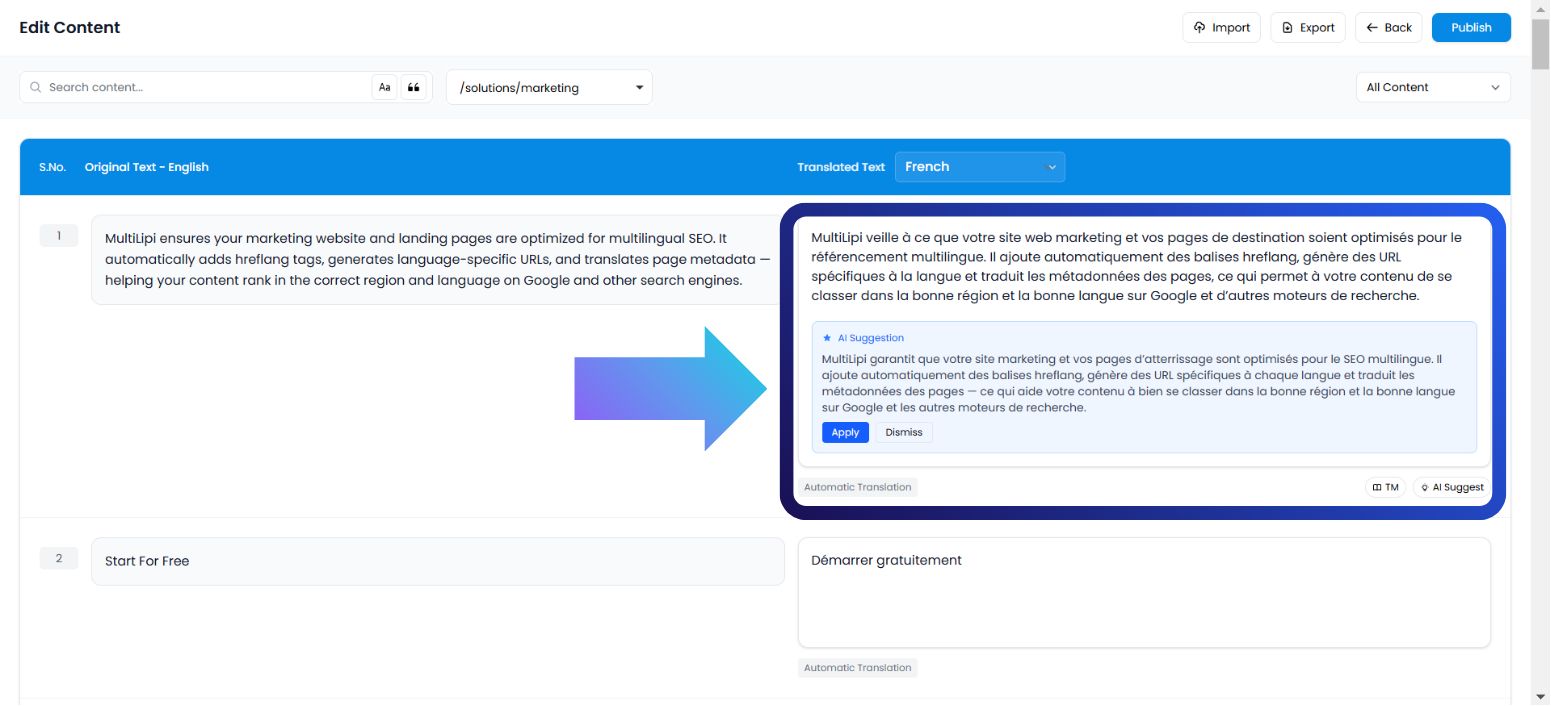
Esta interface exibe o seu conteúdo como uma lista estruturada de pares de strings (Origem vs. Destino). É o ambiente ideal para linguistas ou editores que precisam de se concentrar puramente no texto, sem distrações visuais.
Caso de Uso:
Reformular uma frase específica para ser mais otimizada para SEO ou corrigir uma nuance gramatical num parágrafo denso.
Protocolo de Execução:
Aceder ao Painel: Inicie sessão no seu centro de comando MultiLipi.
Selecionar Projeto: Clique no bloco do projeto específico.
Navegar: Abra o Idiomas separador.
Iniciar Interface: Selecionar Editor Lado a Lado das opções.
Ativar IA: Localize o bloco de texto específico. No lado traduzido (coluna da direita), clique no Sugestão de IA botão.
Submeter:
Aplicar: Substitui o texto atual pela versão da IA (Consome Quota).
Rejeitar: Descarta a sugestão (Custo Zero).
2. O Editor Virtual (Ambiente de Sobreposição)
O contexto WYSIWYG (What You See Is What You Get).
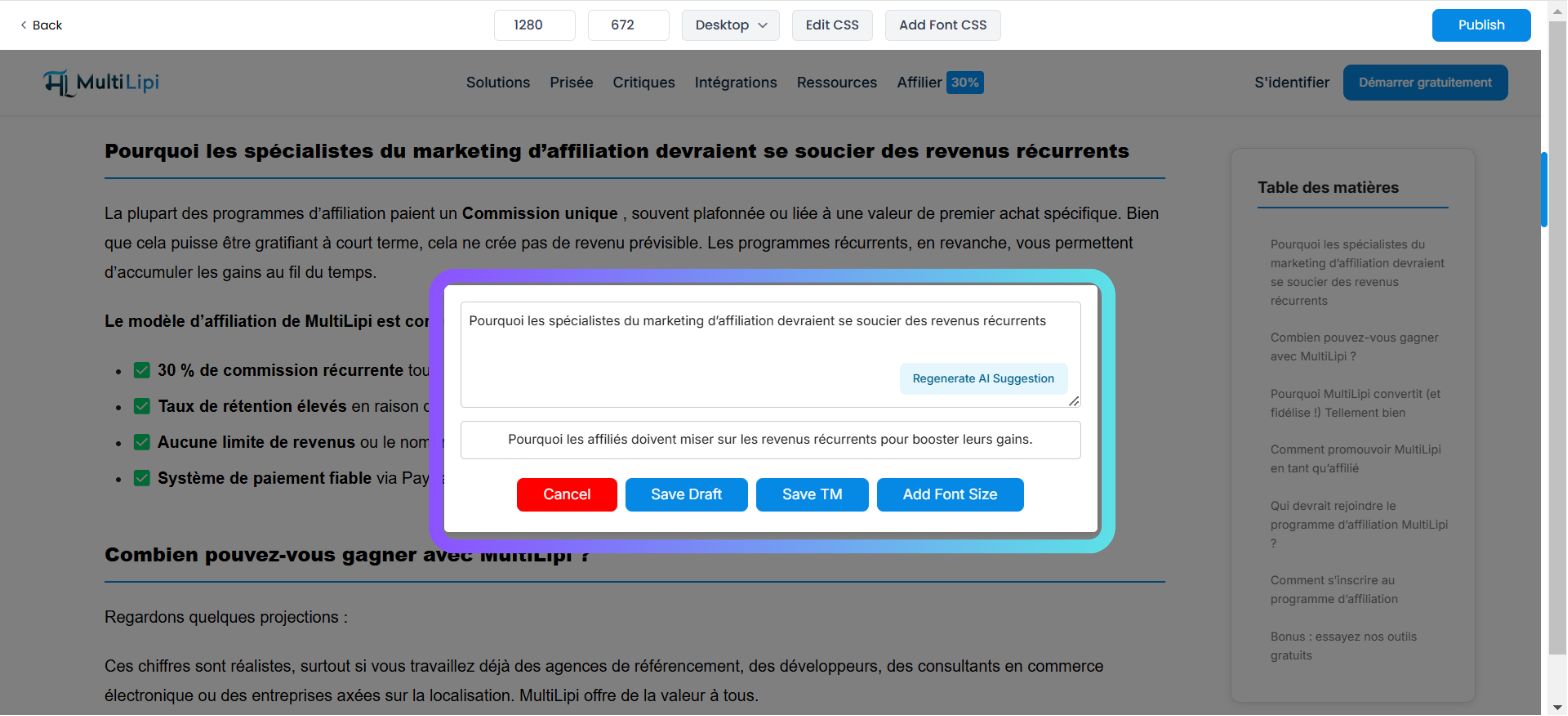
Esta interface sobrepõe o motor de tradução ao seu website ativo. Permite editar texto "in-situ", garantindo que a sua nova tradução se enquadra nos limites visuais dos seus botões, banners e menus.
Caso de Uso:
Encurtar um título de blogue que está a quebrar o layout ou a reescrever um botão de Call-to-Action (CTA) para ser mais impactante.
Protocolo de Execução:
Navegar: Aceda a Dashboard → Projetos → URLs.
Iniciar Pré-visualização: Clique no Editar botão em Pré-visualização Virtual coluna para uma página específica.
Selecionar Elemento: Passe o rato e clique em qualquer bloco de texto editável na pré-visualização em direto.
Ativar IA: Toque no Sugestão de IA botão na barra de ferramentas pop-up.
Submeter: Reveja a opção gerada e clique em Aplicar se couber no seu layout.
3. O Motor de Variabilidade (Diversidade Estilística)
A gerar alternativas semânticas.
Por vezes, uma única tradução não é suficiente. O Motor de Variabilidade gera múltiplas versões estilísticas da mesma frase, permitindo escolher a que melhor se adapta à voz da sua marca (por exemplo, Profissional vs. Persuasivo vs. Conciso).
Caso de Uso:
Testes A/B de diferentes ganchos de marketing para o título de uma página de destino.
Protocolo de Execução:
Aceder às Definições: Abra o painel do seu Projeto.
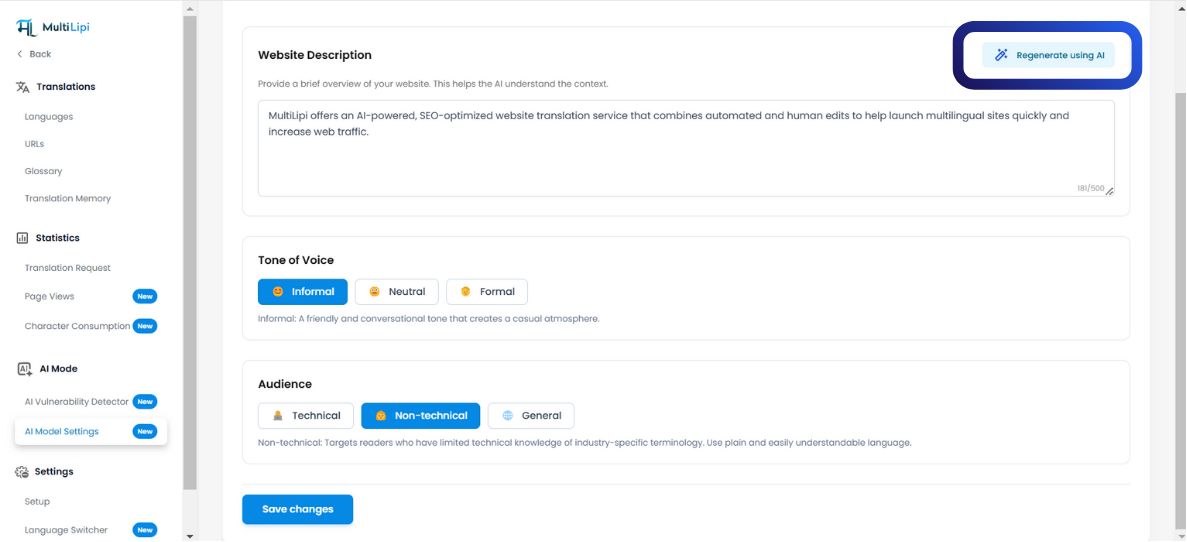
Navegar: Procurar o Modo IA secção na barra lateral.
Configurar: Clique no Definições do Modelo de IA ícone.
Gerar: Escolha o seu desejado Formato de Conteúdo IA. O sistema apresentará várias variações com base na estrutura da frase.
Aplicação Rápida: Selecione a versão que prefere para atualizar instantaneamente a memória de tradução.
4. Governança de Quotas (Lógica de Faturação)
Compreender o custo da geração.
É fundamental compreender quando os créditos são deduzidos do seu plano.
| Ação | Impacto na Quota |
|---|---|
| Ver Sugestão | Grátis. Gerar uma pré-visualização não consome créditos. |
| Aplicar Sugestão | Faturável. A quota só é deduzida quando clica em "Aplicar". |
| Rejeitar Sugestão | Grátis. Rejeitar um rascunho de IA não custa nada. |
Nota do Plano:
Os planos de nível gratuito têm limites rigorosos para o consumo de palavras de IA. Os níveis pagos oferecem limites de geração expandidos ou ilimitados, dependendo do seu acordo empresarial.