
A localização de websites é um esforço colaborativo. Entre gestores de projeto a configurar definições, programadores a verificar código e tradutores humanos a rever texto, necessita de um espaço de trabalho centralizado onde toda a sua equipa possa operar sem problemas.
O MultiLipi permite-lhe convidar múltiplos utilizadores para o seu espaço de trabalho e atribuir funções específicas para manter o seu pipeline de localização seguro e organizado.
Atualização Importante: O Novo Fluxo de Convite na Aplicação
Para melhorar a segurança, prevenir phishing e garantir que os convites nunca se perdem nas pastas de spam, o MultiLipi deixou de utilizar convites por e-mail. Todos os convites de equipa são agora geridos diretamente no painel de controlo do MultiLipi. Isto torna todo o processo de integração mais rápido, seguro e fiável para qualquer dimensão de equipa.
Pré-requisito: O Convidado Deve Ter uma Conta
Um passo rápido antes de enviar o convite.
Como os convites são enviados através do painel, a pessoa que está a convidar tem de criar primeiro uma conta gratuita MultiLipi utilizando o endereço de e-mail exato que pretende convidar.
Assim que se tiverem registado e iniciado sessão em painel MultiLipi, pode prosseguir com os passos abaixo.
Fase 1: Como Enviar um Convite de Equipa
Para Proprietários e Administradores de Espaços de Trabalho.
Navegar para o Painel da Equipa
Inicie sessão na sua conta MultiLipi. No painel de navegação esquerdo, clique em Equipa separador para abrir a área de gestão de membros do seu espaço de trabalho.
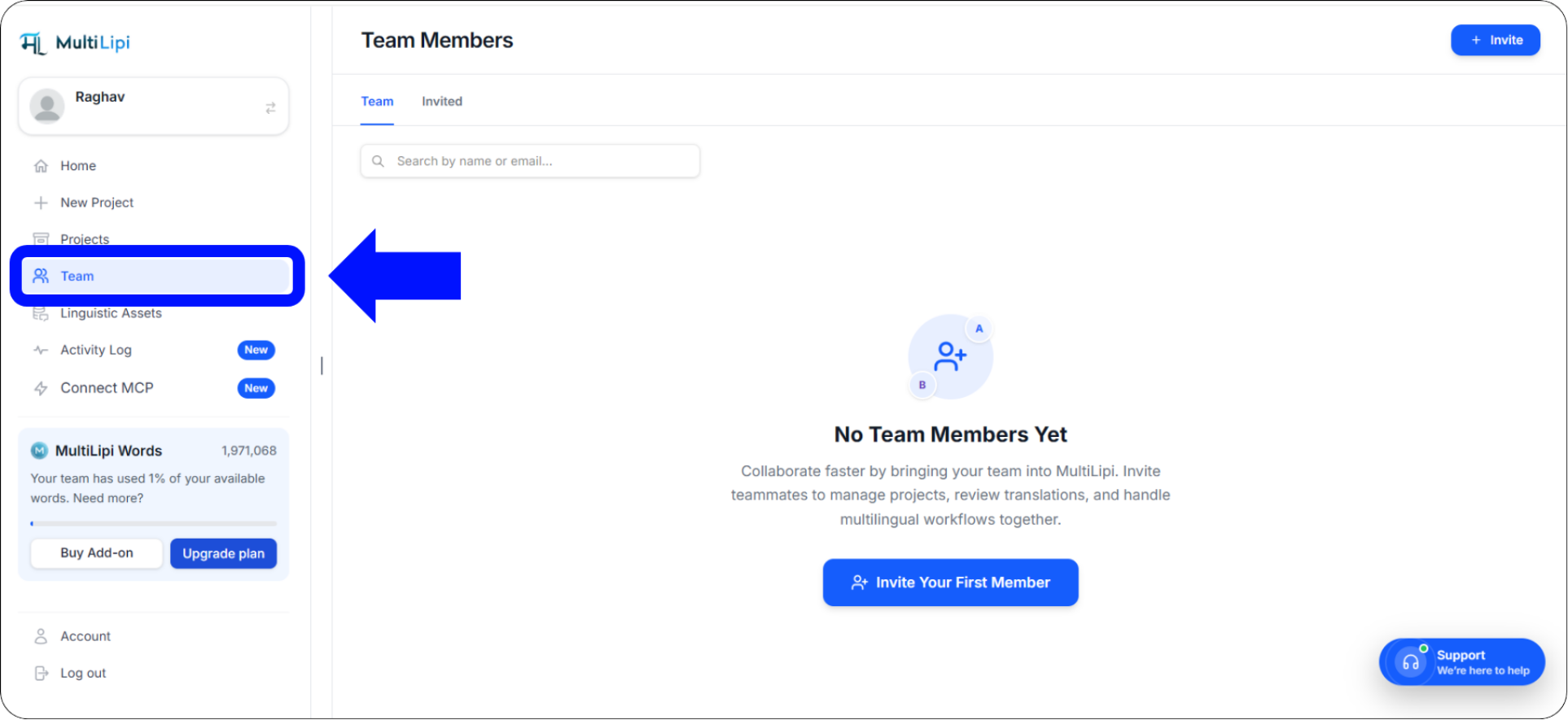
O separador Equipa no painel de navegação esquerdo — o seu centro de gestão de membros do espaço de trabalho
Iniciar o Convite
Se o seu espaço de trabalho estiver atualmente vazio, clique no proeminente botão azul Convidar o Seu Primeiro Membro no centro do ecrã.
Se já tiver membros, clique no botão + Convidar no canto superior direito do painel da Equipa.
Configurar Detalhes e Permissões do Utilizador
Um "Convidar Membros da Equipa" uma janela pop-up aparecerá. Preencha os seguintes detalhes:
ID de Email do Membro
Introduza o endereço de email exato que o seu colega utilizou para se inscrever em MultiLipi. Mesmo um erro de um único caractere fará com que o convite falhe.
Selecionar Função
Escolha o nível de permissão — Administrador para acesso total, ou Colaborador para acesso focado em tradução sem controlo das definições da conta.
Acesso a Projetos Específicos
Por defeito, os utilizadores convidados têm acesso a todos os projetos no seu espaço de trabalho. Marque esta caixa se pretender que apenas acedam a websites específicos na sua conta.
Enviar o Convite
Reveja os detalhes uma última vez e, em seguida, clique no botão azul Enviar Convite botão. O convite aparecerá instantaneamente no painel MultiLipi do seu colega — não é necessário email.
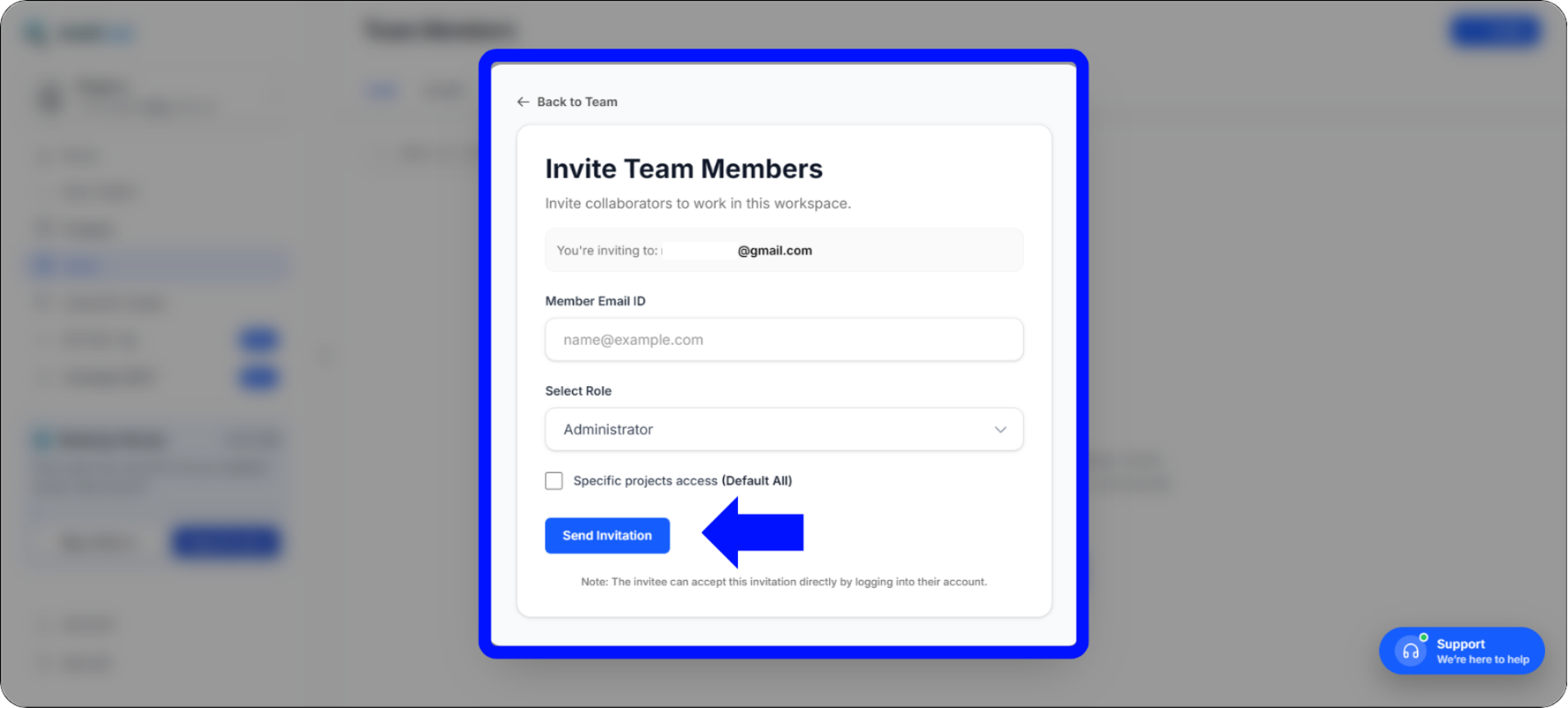
Modal Convidar Membros da Equipa — configure o email, a função e o acesso ao projeto antes de enviar
Fase 2: Como Aceitar um Convite de Equipa
Para o membro da equipa que está a ser convidado — apenas dois cliques.
Se for o membro da equipa a receber o convite, aderir ao espaço de trabalho leva apenas dois cliques — sem confirmação por e-mail, sem expiração de link, sem procura na pasta de spam.
Verifique as Notificações do Seu Painel
Inicie sessão na sua conta MultiLipi. Olhe para o painel de navegação esquerdo — verá um distintivo de notificação vermelho com um número ao lado do separador Equipa separador. Este distintivo indica convites pendentes para o espaço de trabalho à espera da sua resposta.
Aceitar o Convite
Clique no Equipa separador. Na parte superior do ecrã, verá um banner azul intitulado Convites para Espaço de Trabalho — exibe quem o convidou e a função que lhe foi atribuída.
Clique no azul Aderir botão para se conectar instantaneamente ao espaço de trabalho e obter acesso aos seus projetos atribuídos.
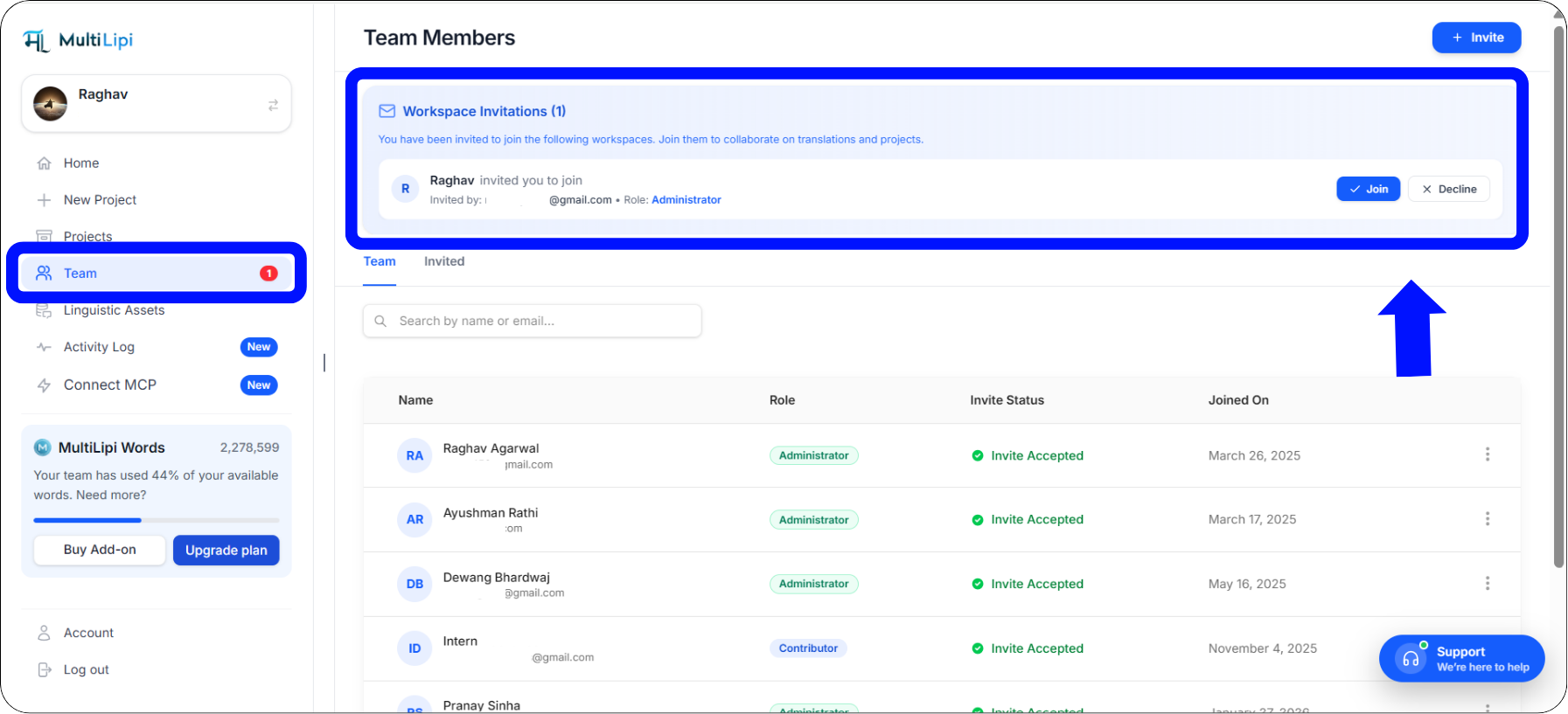
O banner Convites para Espaço de Trabalho — aceite com um único clique no botão Aderir
Fase 3: Modificar Funções ou Remover Membros
Os administradores mantêm o controlo total em todos os momentos.
À medida que a sua equipa aumenta ou muda de responsabilidades, os Administradores do Espaço de Trabalho mantêm controlo total sobre quem tem acesso à plataforma. Pode alterar a função de um utilizador ou removê-lo totalmente a qualquer momento — as alterações têm efeito imediato.
Aceda ao separador Equipa para ver a sua lista ativa de membros atuais.
Localize o membro da equipa que pretende modificar na lista.
No lado direito da sua linha, clique nos três pontos verticais (⋮) para abrir o menu de ações.
Selecionar Editar para alterar a sua função atribuída ou acesso a projetos, ou selecione Eliminar para revogar imediatamente o seu acesso ao seu espaço de trabalho.
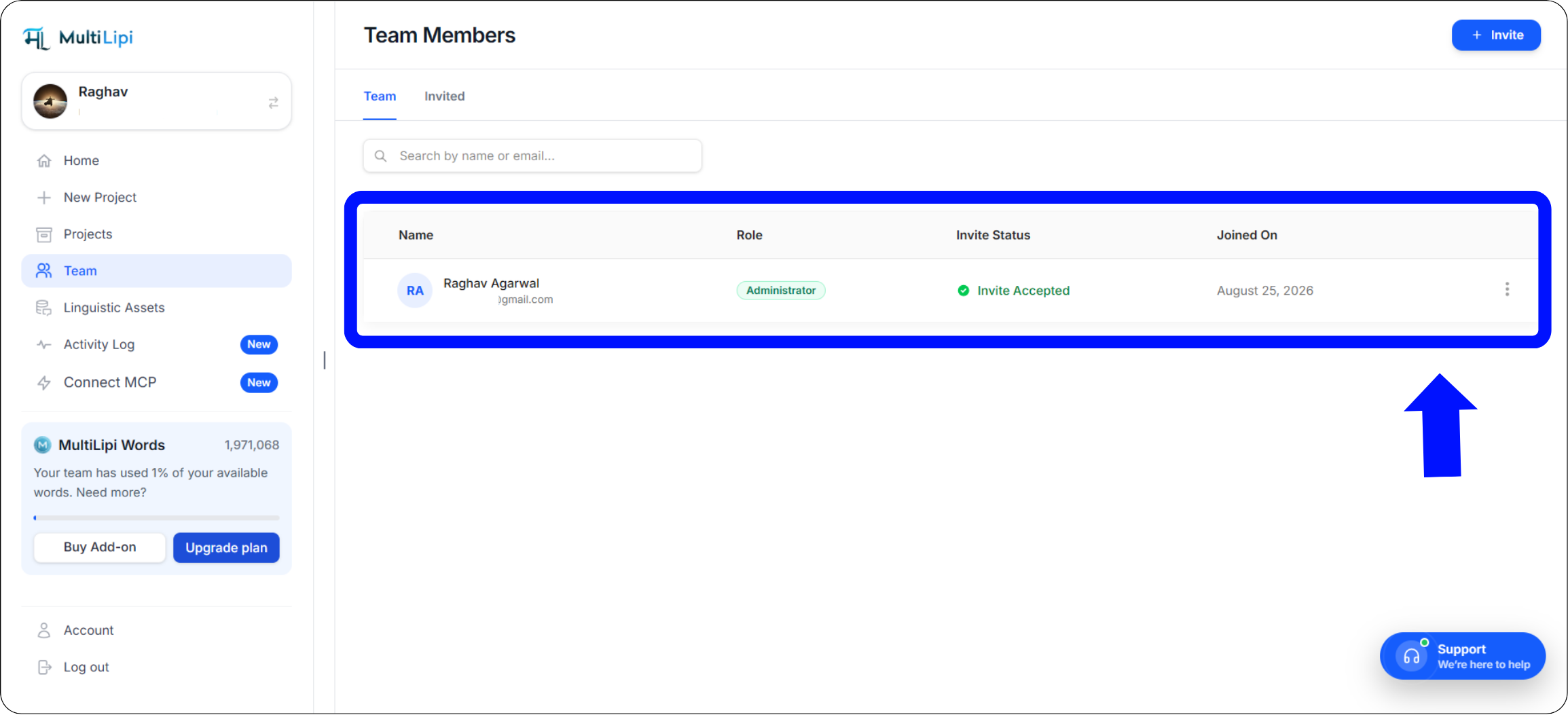
O menu de ações de três pontos em cada linha de membro — Editar função/acesso ou Eliminar para revogar imediatamente
Melhores Práticas para Gestão de Equipas
Mantenha o seu espaço de trabalho seguro e o seu pipeline organizado.
Aplique o Princípio do Menor Privilégio
Ao atribuir funções, conceda sempre aos membros da equipa o nível mínimo de acesso de que necessitam para realizar o seu trabalho — nada mais.
Tradutores humanos e empreiteiros externos
Acesso total ao Editor Visual e às Listas de Tradução — sem a capacidade de alterar configurações de domínio, configurações de DNS ou detalhes de faturação.
Gestores de projeto principais e líderes técnicos
Acesso completo ao espaço de trabalho, incluindo configurações do projeto, configuração de DNS, faturação e gestão de equipa. Reserve isto apenas para líderes internos de confiança.
Resolução de problemas comuns de convite
Resoluções rápidas para os cenários mais frequentes de integração de equipa.
"O meu colega de equipa iniciou sessão, mas não vê o convite."
Isto ocorre quase sempre quando há um erro de digitação no endereço de e-mail, ou o colega de equipa inscreveu-se usando um alias de e-mail diferente (por exemplo, usando um Gmail pessoal em vez do seu e-mail corporativo). Verifique o endereço de e-mail exato que ele usou para registar a sua conta MultiLipi, e reenvie o convite para esse endereço específico.
"Como cancelo um convite pendente?"
Se enviou um convite para a pessoa errada ou atribuiu a função errada, navegue de volta para o seu separador Equipa. Localize o utilizador pendente sob o estado "Convidado", clique nos três pontos verticais ao lado do nome dele e selecione Eliminar para revogar o convite antes que ele possa aceitá-lo.
"Um membro pode pertencer a múltiplos espaços de trabalho?"
Sim! Tradutores freelancers, especialistas em SEO ou parceiros de agência podem usar um único login MultiLipi para aceitar convites de múltiplos espaços de trabalho de clientes diferentes. Podem alternar facilmente entre estes espaços de trabalho distintos a partir do seu painel de conta principal, sem necessidade de senhas separadas.
Resumo: Otimizar o seu fluxo de trabalho global
Colaboração de equipa segura, rápida e organizada — integrada.
Gerir um website multilíngue não deve exigir incontáveis e-mails de ida e volta, folhas de cálculo confusas ou o partilhamento de senhas de conta sensíveis. Ao utilizar o painel de Gestão de Equipa centralizado da MultiLipi, estabelece um ambiente seguro e organizado onde os programadores podem tratar das integrações técnicas de DNS, enquanto os linguistas e profissionais de marketing se concentram puramente no refinamento das traduções no Editor Visual.
A nossa transição para um fluxo de convites inteiramente na aplicação garante que o onboarding do seu projeto permanece altamente seguro, imune a filtros de spam de e-mail agressivos, e incrivelmente rápido — do convite a colaborador ativo em segundos.
Pronto para Reunir a Sua Equipa de Localização?
Dirija-se ao seu separador Equipa hoje e convide o seu primeiro colaborador. Explore estes recursos para maximizar a produção da sua equipa em todos os mercados:
Precisa de ajuda com uma configuração de equipa personalizada? Para espaços de trabalho em escala empresarial com requisitos de função complexos ou necessidades de SSO, contactar o Suporte MultiLipi — a nossa equipa irá ajudá-lo a configurar a estrutura de acesso correta para a sua organização.