O Assassino Silencioso: Porque é que a IA "Alucina" Quando Lê o seu site multilíngue

por MultiLipi
Traduza seu site com AI, corrija problemas de SEO, obtenha sugestões de conteúdo inteligentes e colabore com sua equipe. Inicie em 120+ idiomas com análises e edições rápidas
4.8

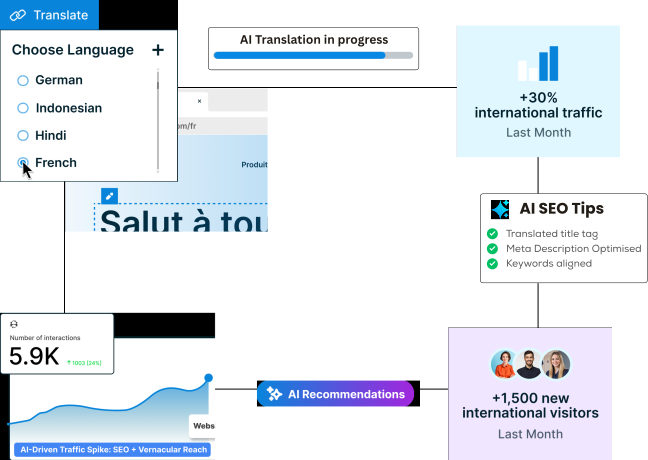
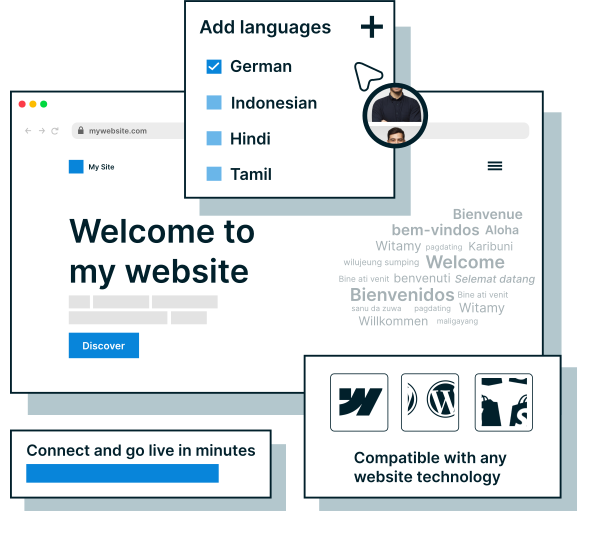
Adicione MultiLipi a qualquer site e obtenha um site totalmente traduzido e otimizado para SEO em minutos. Com no integração -code, qualquer pessoa pode configurá-lo. Vá ao vivo com apenas alguns cliques.
Veja as nossas integraçõesNão deixe que configurações complexas o atrasem. Com MultiLipi, traduza instantaneamente o seu site para 120+ idiomas usando AI. Detete lacunas de SEO, conteúdo não traduzido e problemas de metadados e, em seguida, corrija-os em apenas alguns cliques. Não são necessárias competências tecnológicas.
Saiba mais sobre os recursos do MultiLipi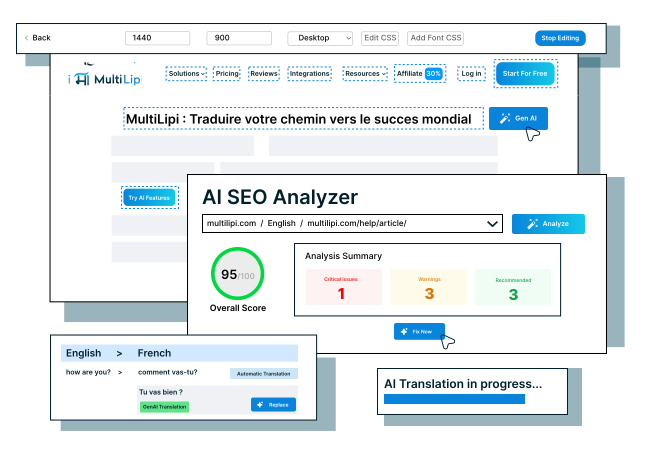
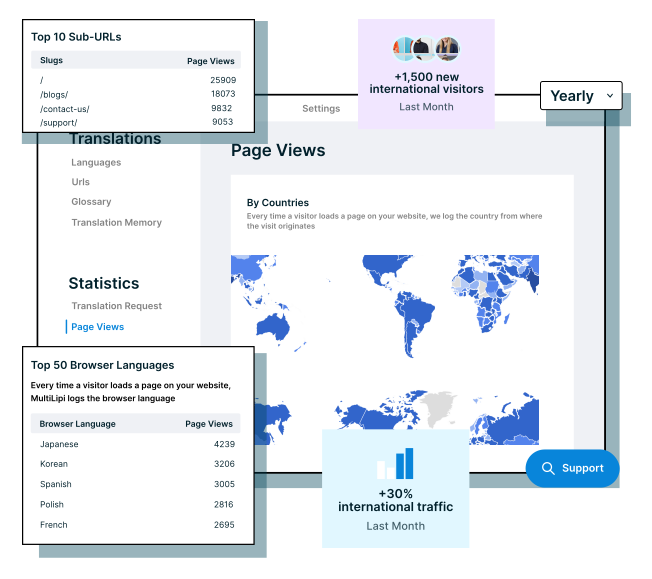
Acompanhe os principais idiomas e locais de visitantes com as análises integradas do MultiLipi. Tome decisões de localização mais inteligentes e aumente o envolvimento - tudo a partir de um único painel.
Descubra outras funcionalidades do MultiLipiGere automaticamente URLs efic de sp idioma, tags hreflang e metadados traduzidos com o MultiLipi. O seu site multilingue é indexado e classificado, ajudando-o a aumentar o tráfego internacional e a visibilidade sem esforço.
Leia mais sobre SEO multilingue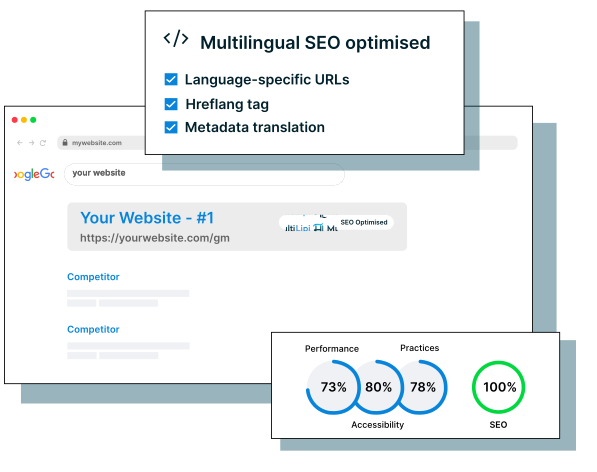
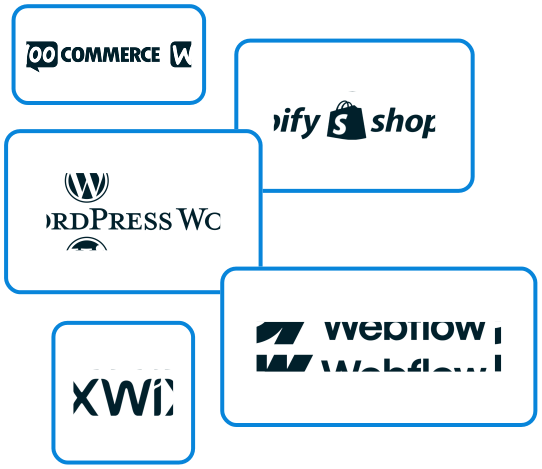
MultiLipi funciona perfeitamente com plataformas como WordPress, Shopify, WooCommerce, Webflow e Wix. Se você estiver executando um CMS ou uma pilha de tecnologia personalizada, você pode traduzir qualquer site sem esforço e lançar seu site multilíngue sem alterar como seu site funciona.
"Alcance novos mercados, aumente seu tráfego orgânico e tenha uma classificação mais alta nos resultados de pesquisa locais."
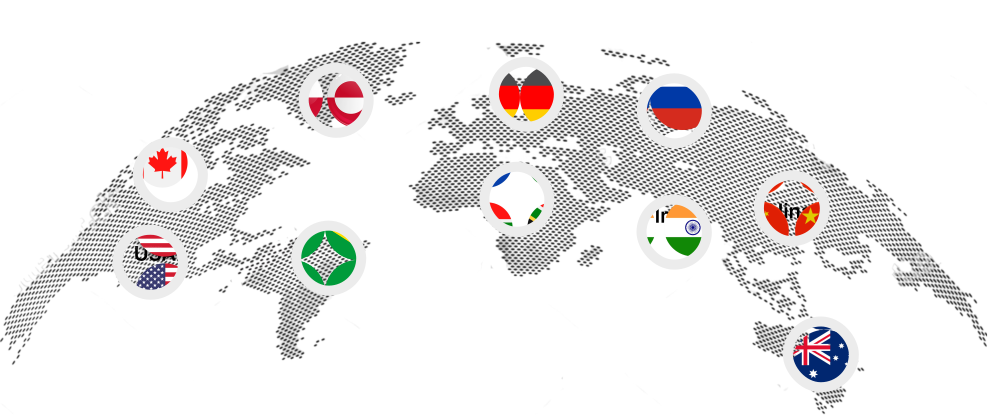
"Junte-se a marcas globais que confiam em nós para quebrar barreiras linguísticas e crescer internacionalmente."





















"Os nossos clientes adoram os nossos produtos. Aqui está o que eles têm a dizer sobre sua experiência conosco."

por MultiLipi


por MultiLipi


por MultiLipi


por MultiLipi


por MultiLipi


por MultiLipi


por MultiLipi


por MultiLipi


por MultiLipi

Obtenha acesso instantâneo ao MultiLipi e experimente como é fácil traduzir o seu site para 120+ idiomas. Sem cartão de crédito, no configuração, no aborrecimento. Use-o gratuitamente para sempre ou atualize a qualquer momento para desbloquear recursos premium como SEO multilíngue e memória de tradução.